Tools for your teaching day
Online lesson planning, right beside your timetable
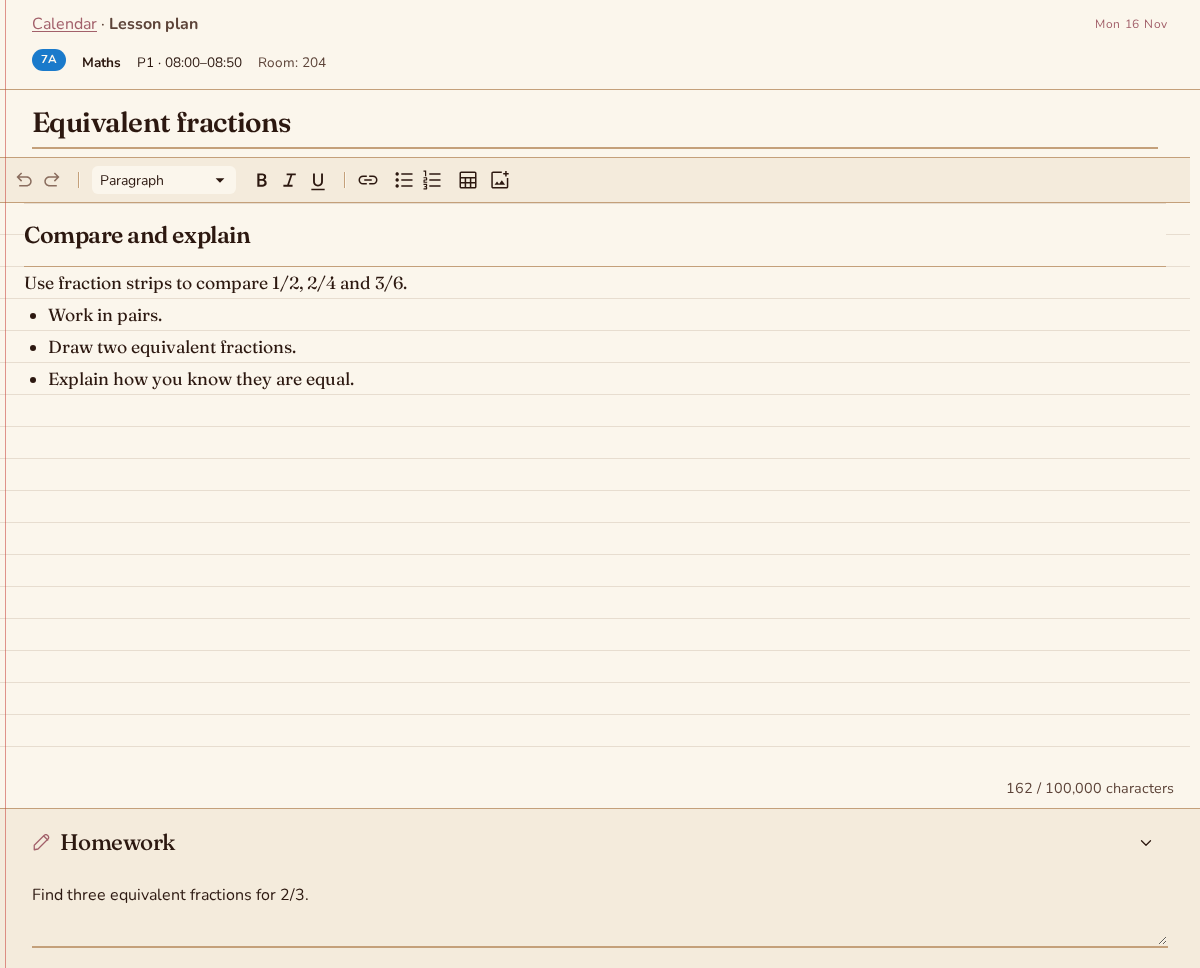
Open a lesson from Today or the calendar to write its plan and homework. The class, subject, date and period come from your timetable. Changes save automatically on your phone, tablet or computer.
Create your plannerTry it free. No payment card needed.
From timetable to lesson plan in three steps
Set up the teaching week
Create your academic year and classes, then add the periods and class slots to your timetable. Skweeshy uses that schedule to show your lessons on the teaching days they belong to.
Open the lesson you want to prepare
Choose the lesson from Today or the calendar. Add an optional title, write your plan and keep homework in its own field, so you can check it quickly at the end of class.
Save and return when you teach
Plans save automatically on this device, then synchronize when connected. Reopen the lesson from Today or the calendar to continue. Check that synchronization has finished before switching devices.
See the lesson in its teaching week
Month, week and day views show lessons from your timetables. Closures and replacing substitutes change which lessons appear, so check the calendar when the schedule changes.
Give your plan a useful structure
Write a short reminder or a detailed plan with headings, lists, tables and images. Homework has a separate collapsible field at the bottom of the editor.
Keep the class context close
Use lesson plans for one scheduled session. Use notes for observations and follow-ups across lessons; link them to a class, student or subject when helpful.
Questions about lesson planning
Can I write lesson plans offline?
Yes. Open the lesson while connected first to download its plan and supporting data. You can then edit its title, text, homework and images offline. Changes save on that device and synchronize when the app is open and connected again.
Can I use the planner on my phone or tablet?
Yes. Skweeshy runs in your browser on a computer, tablet or phone, and you can install it as a web app on supported devices. Sign in with the same account to reach your saved teaching week and lesson plans.
Can I change or clear a plan later?
Yes, while the class and academic year are active and you have write access. Clear the title, plan text and homework to remove the planned status. Changes save automatically.
More teaching tools
Put your next teaching day in one place
A monthly subscription is optional after your trial. The price is shown before you subscribe. Cancel anytime.
Create your planner