Tools for your teaching day
Create a classroom seating chart from your class list
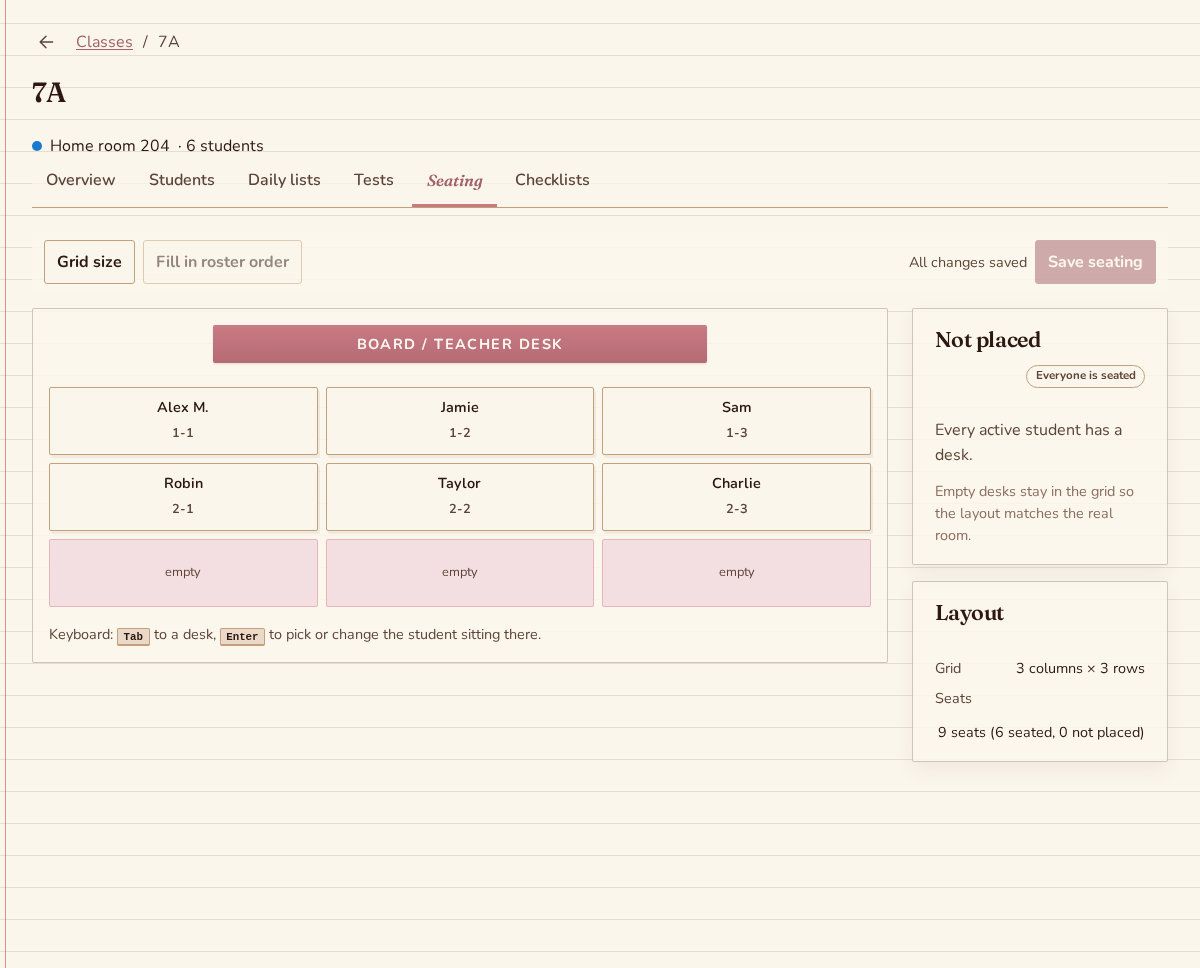
Create a seating chart from your class roster. Choose rows and columns, place students and save the arrangement. Empty desks and students without a place remain visible.
Create your plannerTry it free. No payment card needed.
Build your classroom seating plan
Start with the class roster
Create the class and add its students. Open Seating from the class to use that roster directly. You can see which students have already been placed and which still need a desk.
Arrange the desks and students
Choose the number of rows and columns. Drag a student to a desk, or click a desk and choose a student. Dropping someone on an occupied desk swaps the two students.
Save the arrangement you want
Review the empty desks and the students still waiting for a place, then save the whole arrangement. Changes remain a draft until you save, so you can try placements before keeping them.
Use one class list across your teaching tools
The chart uses the class’s active roster, with one student per desk and one desk per student. Students and parents do not need accounts.
Make small changes as the class changes
Drag students, choose a desk by keyboard or tap, or fill the chart in roster order. The grid allows 1–20 rows and columns. Reducing its size returns students from removed desks to the unplaced list.
Keep a printed copy within reach
Print the chart with your browser’s Print command. You can reopen and revise the saved layout, or delete it from the active class’s overview without deleting students.
Questions about classroom seating plans
Can I make the seating chart without dragging?
Yes. Click or tap a desk and choose a student. Drag-and-drop is another way to place students, and dropping on an occupied desk swaps the two places. You can also fill the grid in roster order, then make individual changes.
Which classroom layouts can I create?
The current seating tool uses a rectangular grid with one to twenty rows and columns and the board at the front. Leave desks empty where you need space. Each class has one saved arrangement, which you can revise as your seating changes.
Can I save the arrangement offline?
Saving seating layouts requires an internet connection. Keep the arrangement as a draft while you decide where students should sit, then use Save when connected. Other supported classroom tasks, including grading and notes, can work offline with previously downloaded data.
More teaching tools
Put your next teaching day in one place
A monthly subscription is optional after your trial. The price is shown before you subscribe. Cancel anytime.
Create your planner